Mac app · Productivity · Free
MenuTimer
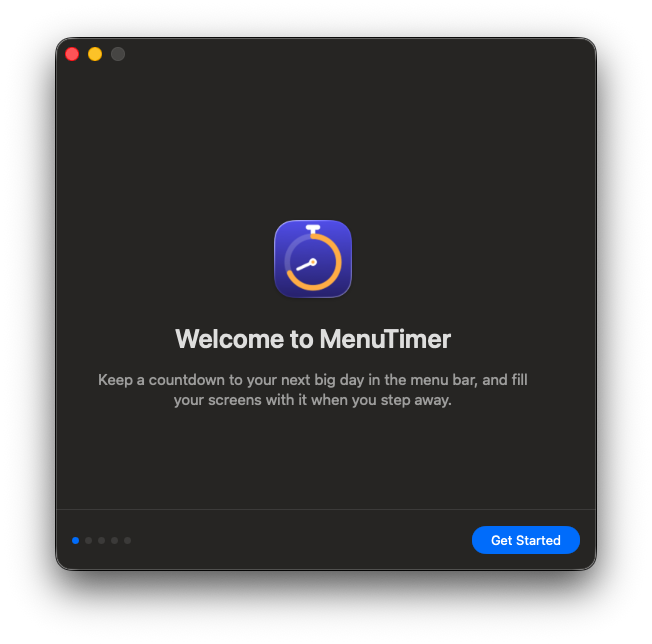
A countdown to your next big day in the Mac menu bar — and on every screen when you step away.
Preview
About
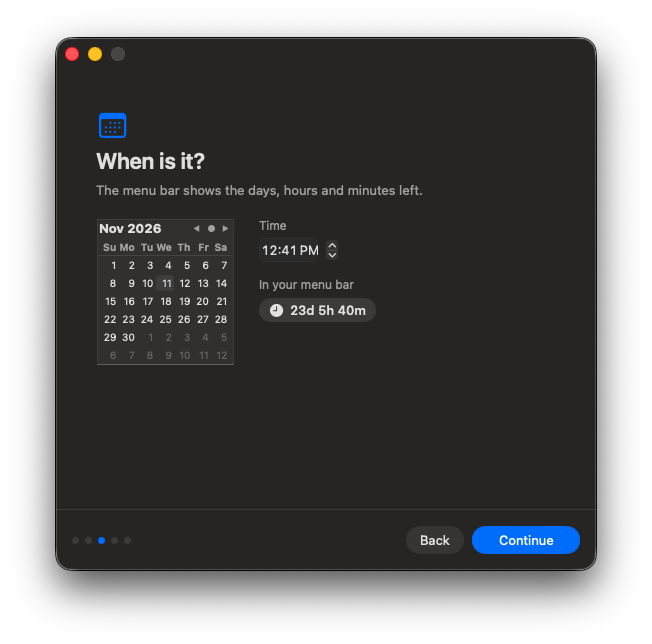
MenuTimer is a small Mac app that counts down to one date and time you choose, such as a product launch, a trip, a wedding or an exam. The time left sits in the menu bar at the top of the screen — 23d 5h 40m, say — so it’s always visible without opening a window.
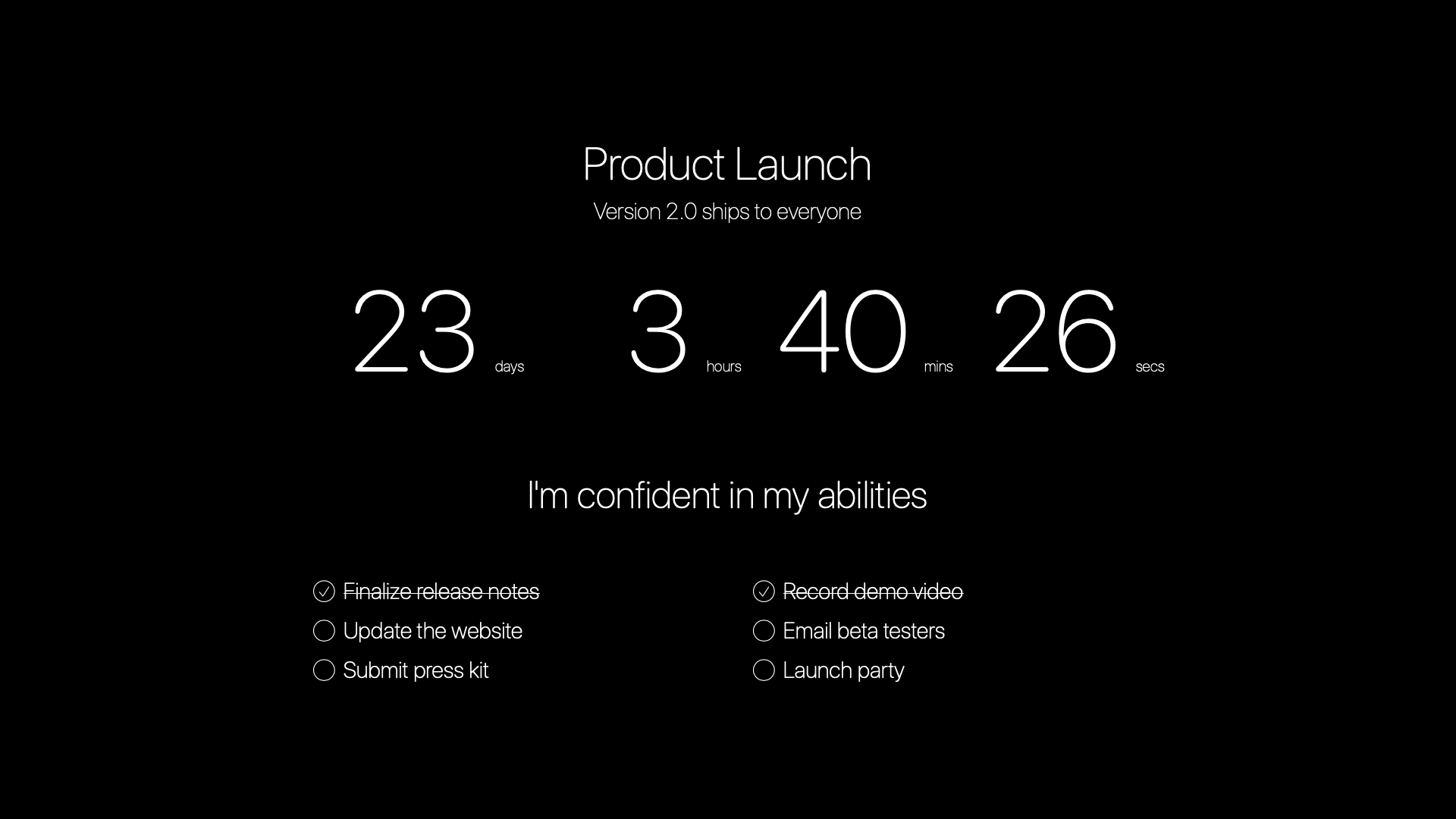
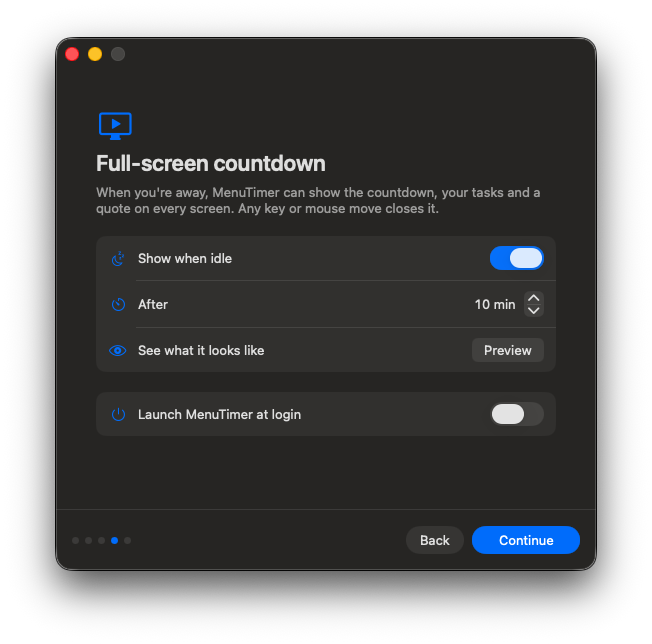
When you’re away from your Mac, it can fill every connected screen with a full-screen countdown: the event, a large live countdown, your task list and a motivational quote. Move the mouse or press any key and it’s gone.
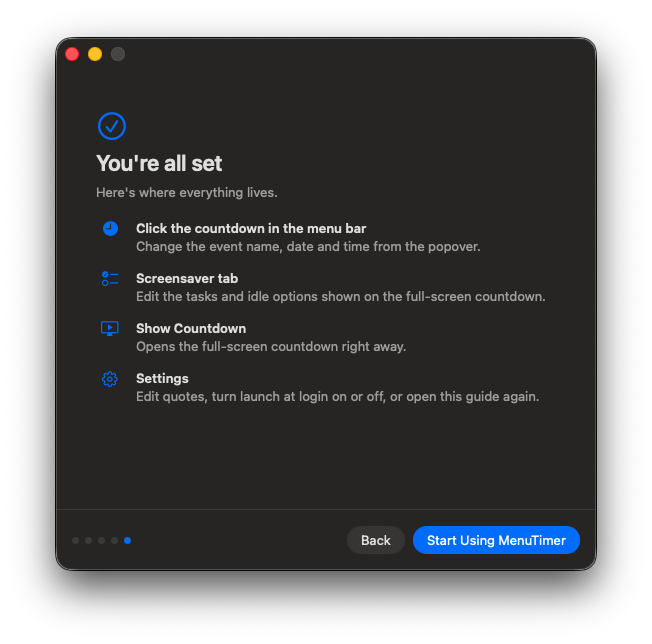
It’s a menu bar app, with no Dock icon and no main window. Click the countdown in the menu bar to see and change everything. Everything stays on your Mac — no network requests, no accounts, no analytics and no tracking.
What you get
Countdown in the menu bar
Days, hours and minutes left next to a clock icon, updated every minute. Zero values drop away, so it shrinks as the day gets closer.
Quick editing
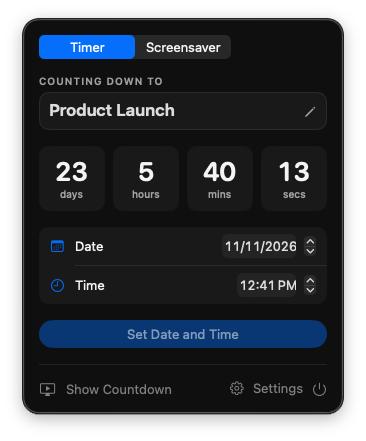
Click the countdown for a small panel with a live countdown to the second, date and time pickers, and a Show Countdown button.
Full-screen countdown
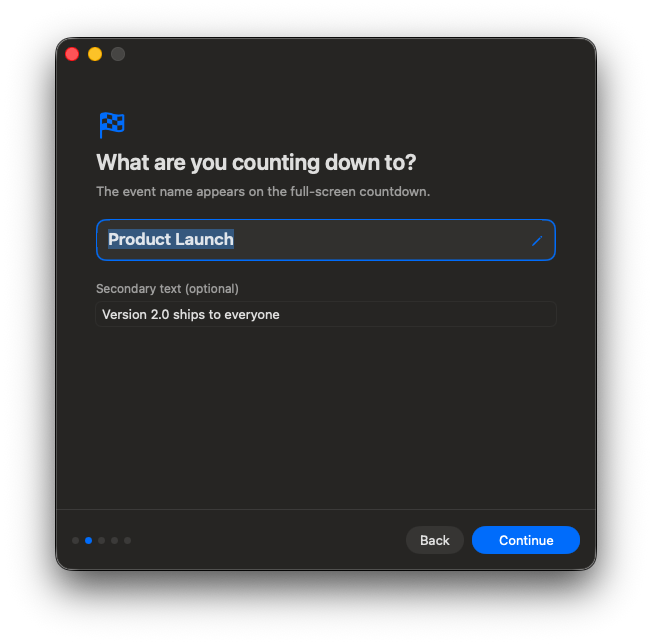
Covers every connected display with the event name, an optional line of secondary text, a large countdown, your tasks and a quote.
Shows itself when you’re idle
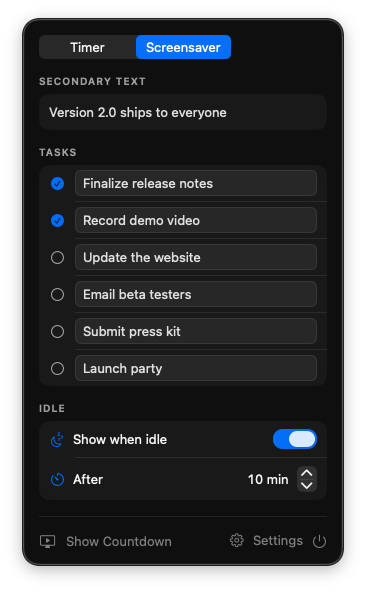
Optionally starts after 1 to 120 minutes without input — and waits while a video or call is keeping the display awake.
Tasks & quotes
Six task slots with checkmarks, and 14 affirmations that change every 90 seconds. Edit, add, delete or restore them.
Guided first-run setup
A short welcome walks through the event, date, full-screen options and launch at login. Reopen it any time from Settings.
Private & sandboxed
Runs in Apple’s App Sandbox with no network requests, accounts or tracking. Everything stays on your Mac.
Signed & notarized
Signed with an Orionbelt.com LLC Developer ID and notarized by Apple, so it opens without security warnings.
Questions
- How do I install it?
- Open the disk image and drag MenuTimer to the Applications folder — the disk image includes a shortcut to it. Then open MenuTimer: the welcome window appears and the countdown shows up in the menu bar.
- Where did the app go after I opened it?
- It lives in the menu bar at the top right of the screen, not the Dock. Look for the clock and the time left. If your menu bar is crowded, especially on a MacBook with a notch, it may be hidden behind other icons.
- How do I quit it?
- Click the countdown in the menu bar, then the power button at the bottom right.
- Will it pop up during my video call or movie?
- No. It waits while a video or call is keeping the screen awake.
- Is it a macOS screen saver?
- No. The full-screen countdown is a window MenuTimer shows, so if the Mac’s own screen saver or display sleep starts first, it covers the countdown. Set both to start later than MenuTimer’s idle time.
- Can I have more than one countdown?
- Not yet — MenuTimer counts down to one date at a time.
- Can I change the quotes?
- Yes. In Settings, edit, add or delete them, or delete them all to hide the quote.
- Does it start when I log in?
- Only if you turn on Launch at login, in the welcome window or in Settings.
- How do I get updates?
- There are no automatic updates yet. New versions are downloaded from this page.